Lights Down, Movie On - Bringing the Cinema Experience to My Living Room
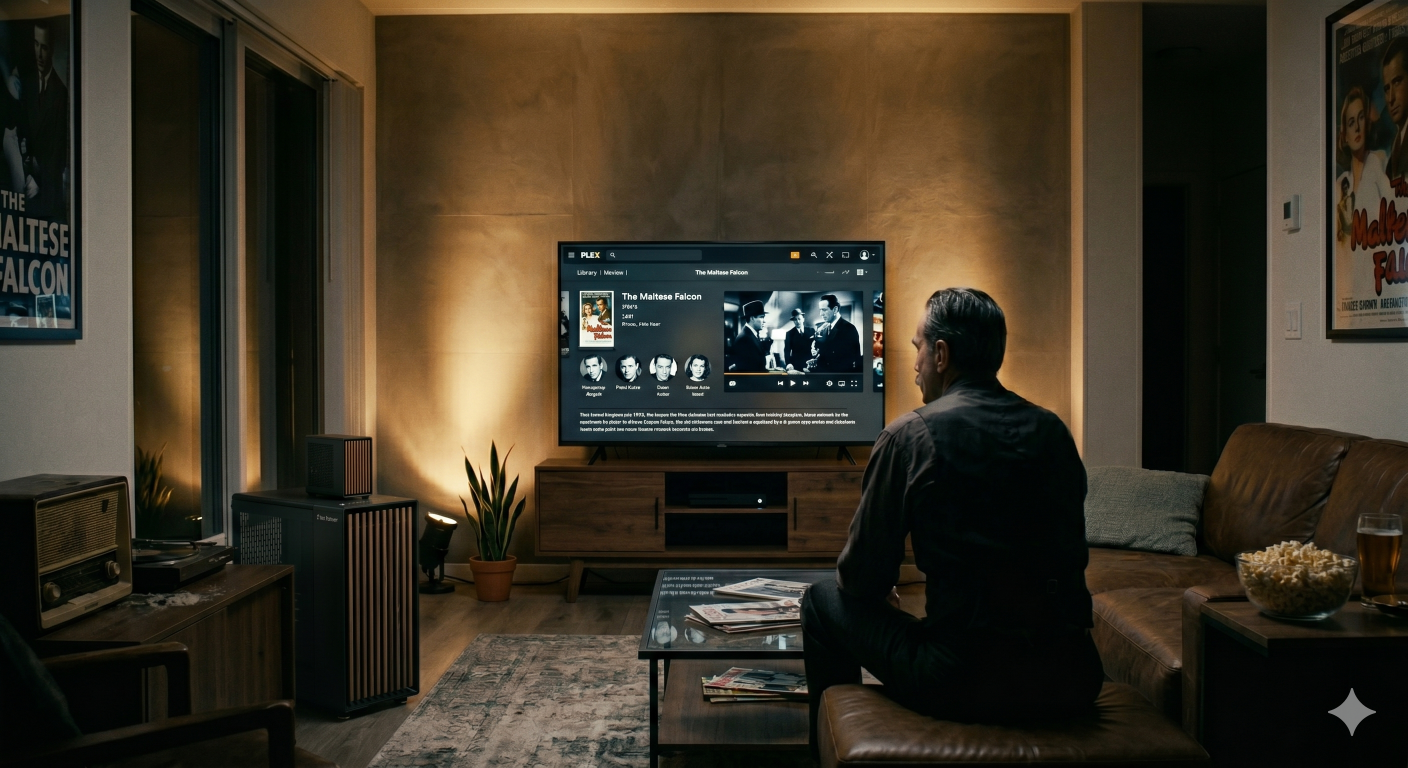
30 Apr 2026Movies and cinema are my passion, and I love the feeling of well-designed movie theaters. I still go to theaters, but watching movies in your living room has always been a thing. What I miss about theater was the feeling of getting into the movie when lights dim off, and when the lights are on, you know it is either a break or end of the movie.
My idea was bringing that feeling to my humble living room. What I need for this is quite simple as you can imagine; a smart TV, smart bulbs but most important part is communication between them so we need a orchestrator as well.
On my TV, I mostly watch movies via Plex which is being served by my Windows PC. The idea is creating an automation based on the operations being done in Plex Server. So that I can somehow trigger the smart bulbs and make my dreams come true… The somehow is Home Assistant.
TL;DR
Tech Stack
Let’s go one by one on our setup.
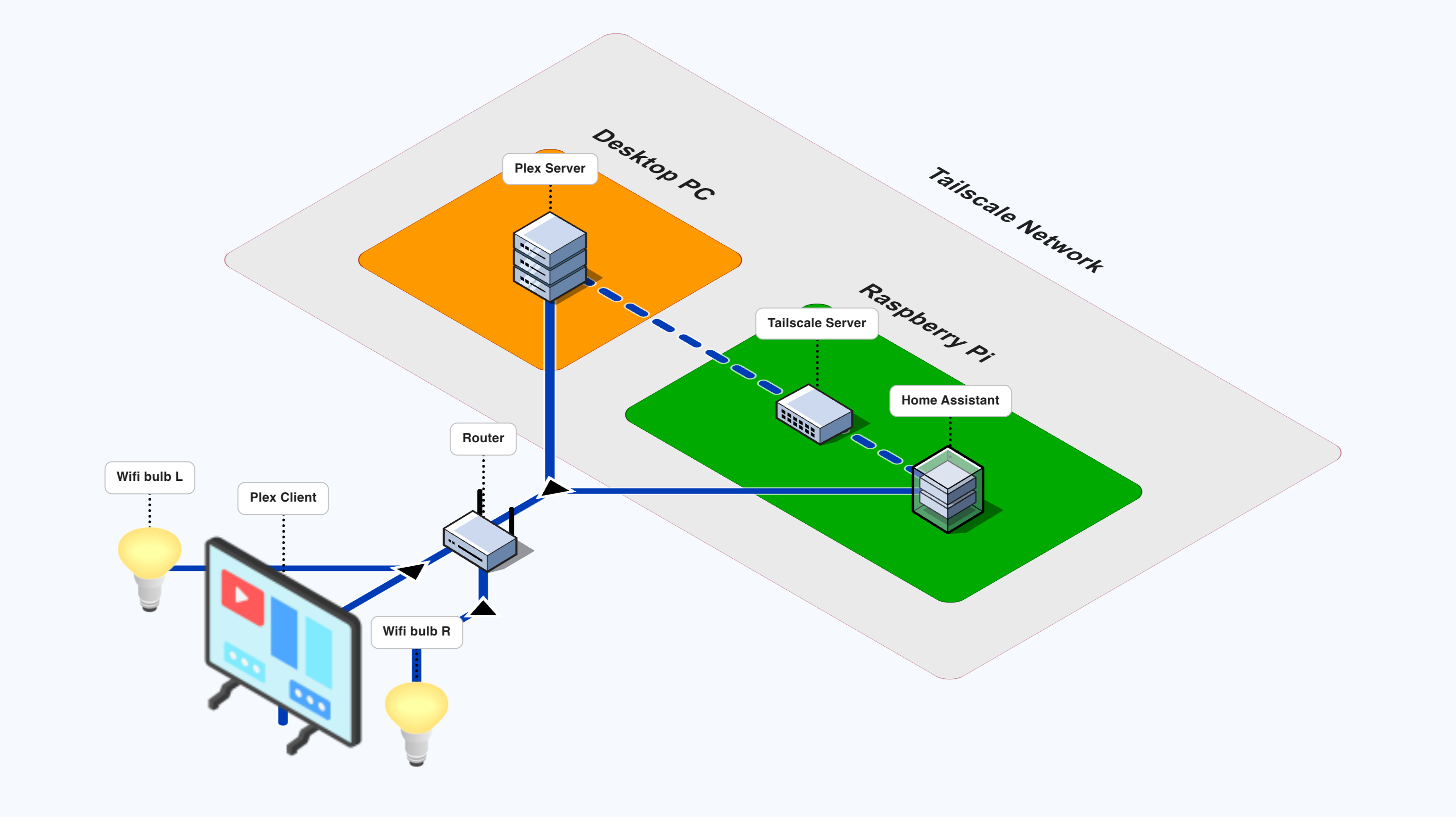
- Streaming Server: A Windows PC which is running Plex Media Server. In short, Plex Media Server is your own private media hub where you organize and stream your files (music, movies, shows).
- Orchestrator: Raspberry Pi 5 running Home Assistant. Home Assistant is an open-source centralized control system designed to link smart home devices.
- Client: Google TV, which has Plex app installed and watching streamed media.
- Lights: 2x Tapo L630 Wifi Smart Bulb G10
- Network: All devices are connected to WiFi and communicating via router. Also, Tailscale is enabled.
Tailscale
Tailscale’s job is to make all your devices act like they are on the same Wi-Fi network, no matter where they are in the world. Plex is storing the media, Home Assistant controls the smart devices in your home (+ other services), and may be from your phone app you want to reach both even when you are not at the local network. Tailscale ensures you can safely reach both of them from your phone while you’re sitting at a beach in another country.
Another benefit is, with Tailscale, you do not need to open the Plex Media Server port in your firewall to access to media from other devices. But keep in mind that Tailscale should be up and running in both ends.
First, I have installed Tailscale in Pi, and utilized it as a central server in the Tailnet. Installation on Pi is very simple;
curl -fsSL https://tailscale.com/install.sh | sh
Then start the Tailscale client:
sudo tailscale up
Verify the installation and check your Tailnet IP:
tailscale ip
Now you have new IP for all of your devices in the Tailnet. We will use these IPs to make all devices communicate. You can check the IP addresses of your devices in from the Tailscale UI as well.
Plex
Using Plex needs 2 main installations; server and client. Server is where your media files are located and streamed from. In my case I have utilized my Windows Desktop PC as the server, so it requires the server running when I want to watch movies. An ideal case would be a dedicated NAS server which is running 7/24.
Server installation is very straightforward; select your OS from Plex Website and install it. Follow the installation guide if you are using it first time, then create a library from a target directory where your files are located.
For the client, just get the app from google play store or app store. In my Google TV, I have installed and logged in, the client app automatically finds the libraries from the media server in your local network and you can start streaming immediately, as long as server is running and both server and client are in same network.
Network Configuration of Plex Media Server
The Plex Media Server and the Plex App are able to communicate with each other. But in our case we need to make the Plex Media Server accessible via
To do that, I have configured the Plex Media Server via Settings -> Network -> Custom server access URLs. Then added my https://<Tailscale-IP>:32400 as https://100.x.x.x:32400 . Then voilà!
Home Assistant
I have utilized my Raspberry Pi 5 for Home Assistant (HA). There are 2 installation types of the Home Assistant: one is the Home Assistant OS, which is installed as an OS in Pi, the other is the Home Assistant Container, which runs in a container inside Pi. Since I have other jobs and use cases in my Pi, I went with the container approach.
Let’s go with the installation. Here we pull the official image first.
docker pull homeassistant/home-assistant
Then run the Home Assistant image.
docker run -d \
  --name homeassistant \
  --privileged \
  --restart=unless-stopped \
  -v /home/pi/homeassistant/config:/config \ #Replace with your desired path to homeassistant
  -v /run/dbus:/run/dbus:ro \
  --network=host \
  ghcr.io/home-assistant/home-assistant:stable
If no error occurred, check if the container is up and running.
docker ps
If the status shows Up, you can head to http://<your-pi-ip>:8123 to start the onboarding wizard.
The Plex Integration on HA
After you set up your HA account, you need to go to Settings > Devices & Services > Add Integration and search for Plex Media Server (or use directly that link https://my.home-assistant.io/redirect/config_flow_start?domain=plex).
Follow the installation guide to connect your Plex Media Server in local network to HA. If the devices are connected to Tailscale and the network configuration of Plex done properly, HA will automatically find the Plex Media Server.
Smart Bulbs
This part is up to you about which smart bulbs you want to use or buy. I bought Tapo L630 which is a smart spotlight that supports WiFi connection. I have downloaded the app of Tapo and set the lights up.
Important part in here is connecting those bulbs to HA. There are brand based integration support in HA for almost all of the smart device brands. I found the one for TP-Link Smart Home https://www.home-assistant.io/integrations/tplink/ and set this up. Then started using spotlights.
Building the Theater Experience: Controlling Lights via HA
After figuring out how to communicate and integrate everything to Home Assistant, the most fun part is building a logic and controlling lights for dimming effect.
The Scene Setting
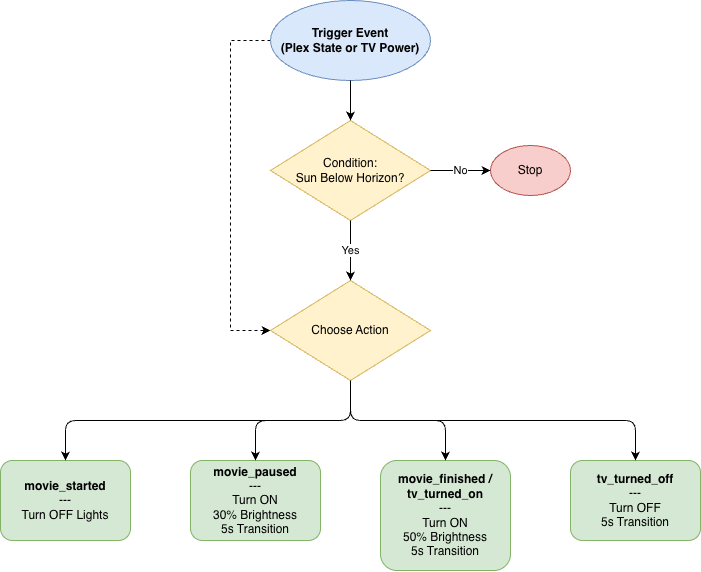
It only activates when the sun is below the horizon, ensuring your lights don’t fight the daylight.
Once it’s dark, the automation chooses a lighting level based on your activity:
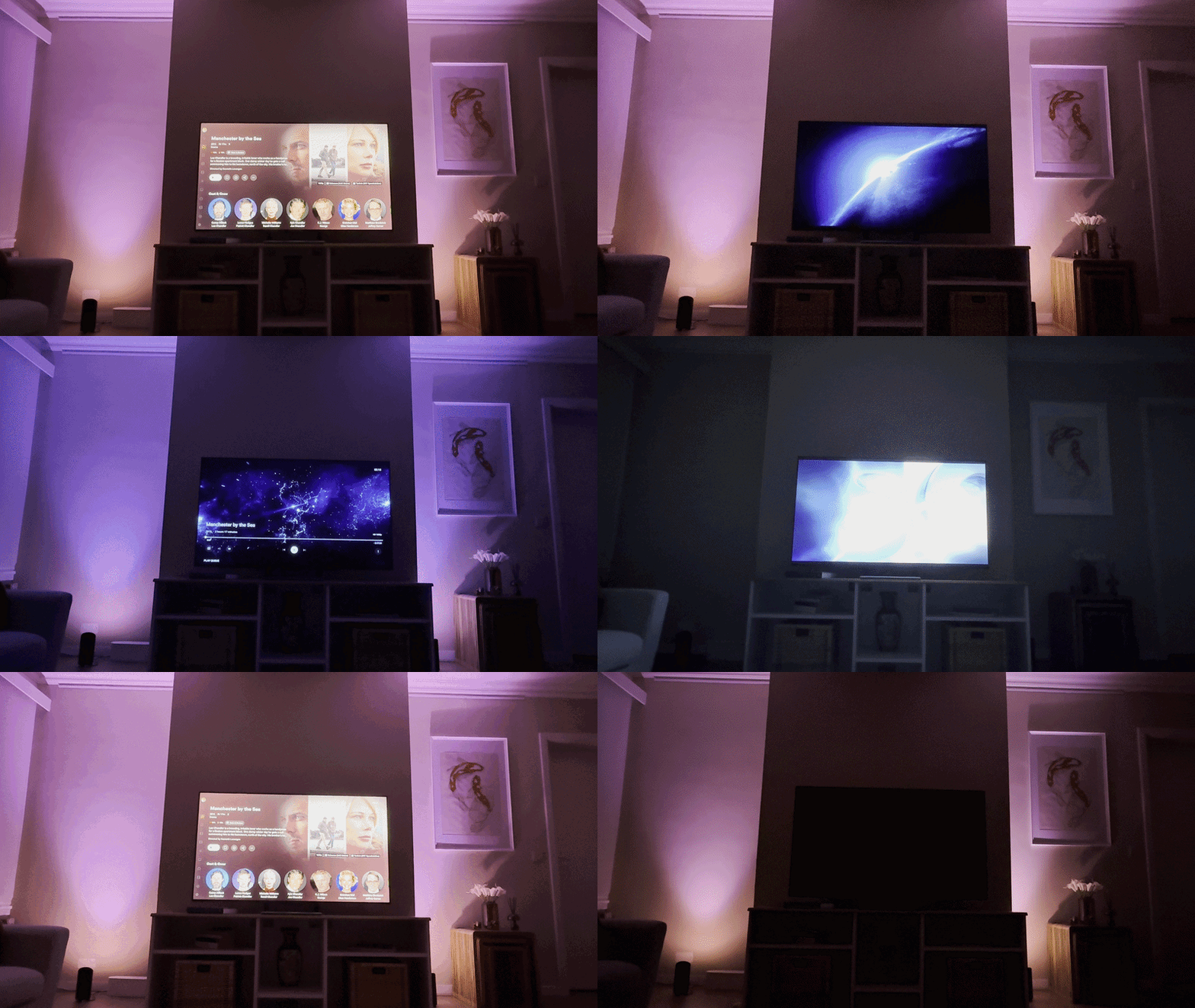
- Total Immersion: When a movie starts playing, the lights fade out in 2-seconds.
- Intermission: Pausing triggers turn on signal to 30% brightness so you can find the popcorn.
- Active Viewing: Turning the TV on or finishing a movie brings the lights to 50%.
- Goodnight: Turning the TV off initiates a 2-second fade to black.
Let’s check the entity names before applying the logic code:
| Category | Entity Name |
|---|---|
| Plex Player | media_player.plex_living_room |
| Television | media_player.living_room_tv |
| Left Light | light.spot_tv_ambient_l_tapo_l630 |
| Right Light | light.spot_tv_ambient_r_tapo_l630 |
An the YAML file for the automation:
alias: TV Lights Trial
description: TV Lights Trial
triggers:
  - entity_id:
      - media_player.plex_living_room
    from:
      - paused
      - unavailable
    to:
      - playing
    id: movie_started
    trigger: state
    enabled: true
  - entity_id:
      - media_player.plex_living_room
    from:
      - playing
    to:
      - paused
    id: movie_paused
    trigger: state
  - entity_id:
      - media_player.plex_living_room
    to:
      - unavailable
    id: movie_finished
    trigger: state
    from:
      - playing
      - paused
  - entity_id: media_player.living_room_tv
    from: "off"
    to: "on"
    id: tv_turned_on
    trigger: state
  - entity_id: media_player.living_room_tv
    from: "on"
    to: "off"
    id: tv_turned_off
    trigger: state
conditions:
  - condition: state
    entity_id: sun.sun
    state: below_horizon
actions:
  - choose:
      - conditions:
          - condition: trigger
            id:
              - movie_started
        sequence:
          - target:
              entity_id:
                - light.spot_tv_ambient_r_tapo_l630
                - light.spot_tv_ambient_l_tapo_l630
            data:
              transition: 2
            action: light.turn_off
      - conditions:
          - condition: trigger
            id: movie_paused
        sequence:
          - target:
              entity_id:
                - light.spot_tv_ambient_r_tapo_l630
                - light.spot_tv_ambient_l_tapo_l630
            data:
              brightness_pct: 30
            action: light.turn_on
      - conditions:
          - condition: trigger
            id: movie_finished
        sequence:
          - target:
              entity_id:
                - light.spot_tv_ambient_r_tapo_l630
                - light.spot_tv_ambient_l_tapo_l630
            data:
              brightness_pct: 50
            action: light.turn_on
      - conditions:
          - condition: trigger
            id: tv_turned_on
        sequence:
          - target:
              entity_id:
                - light.spot_tv_ambient_r_tapo_l630
                - light.spot_tv_ambient_l_tapo_l630
            data:
              brightness_pct: 50
            action: light.turn_on
      - conditions:
          - condition: trigger
            id: tv_turned_off
        sequence:
          - target:
              entity_id:
                - light.spot_tv_ambient_r_tapo_l630
                - light.spot_tv_ambient_l_tapo_l630
            action: light.turn_off
            data:
              transition: 2
mode: restart
🎬 Final Thoughts
Now, when I sit down and hit “Play” on a Martin Scorsese movie, my living room transforms. The lights don’t just “shut off”—they fade out, signaling that it’s time to focus. It’s a small detail, but I like it.